Connexion
New LibreOffice extension: Impress Remote
LibreOffice extensions are optional, third-party addons for the suite, that add extra functionality. Bora Yarkın has been working on a new extension for LibreOffice Impress, so let’s hear from him about it…
Tell us about it!
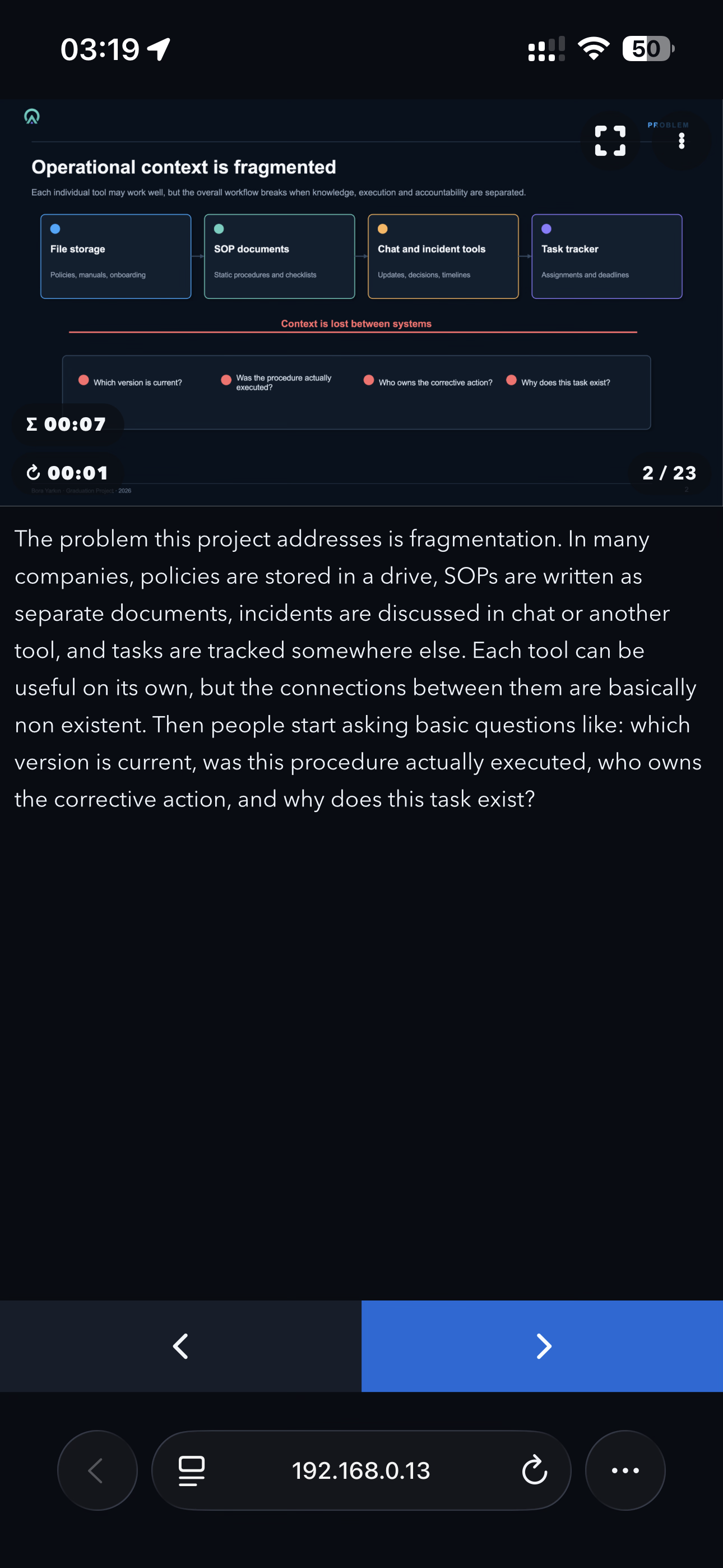
The extension lets you control a LibreOffice Impress presentation from your phone or any other device with a modern web browser.
When you start the remote, LibreOffice displays a QR code. Scan it with your phone and the presentation starts from the first slide. The phone interface then shows the current slide, presenter notes, elapsed time and navigation controls.
I tried to make the process as simple as possible: no separate mobile application and no manual pairing codes.
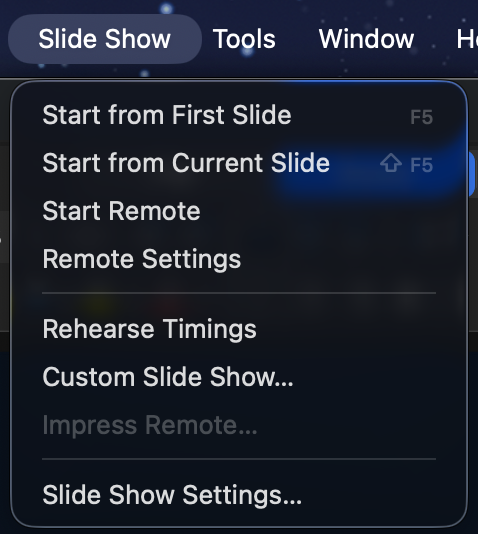
The remote can be opened from the Slide Show menu in LibreOffice’s top application menu bar—the menu alongside File, Edit, View and the other main menus.
This should not be confused with the Slide Show tab inside LibreOffice’s Tabbed user interface. LibreOffice’s UNO extension API does not currently let me add commands to that built-in tab. When using the Tabbed interface, the remote commands are therefore available under the Extensions tab instead.
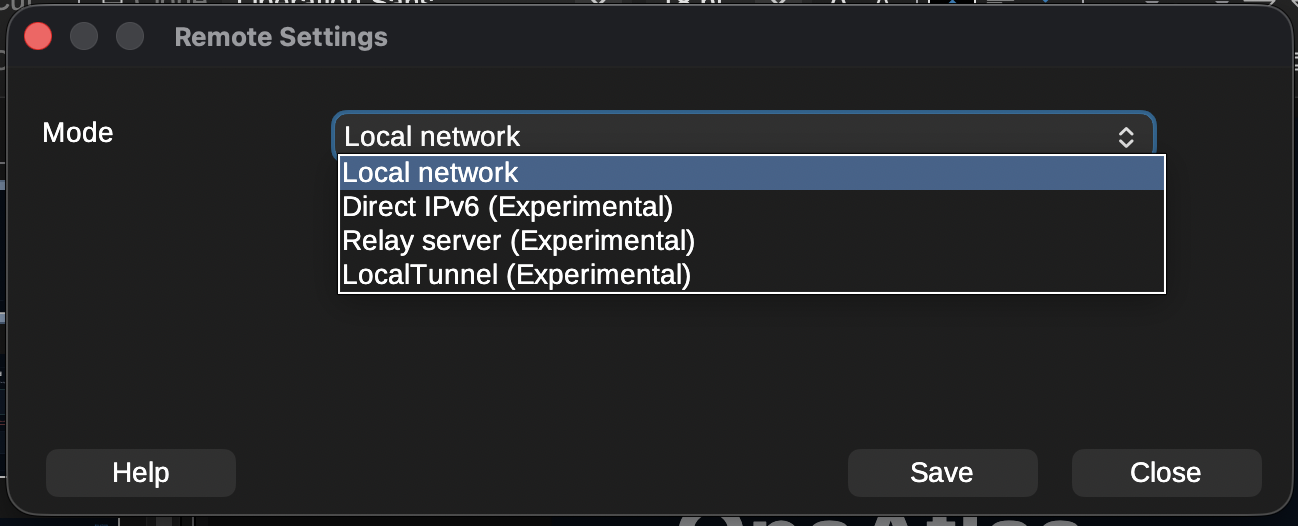
The extension currently provides several connection modes:
- Local network: The phone connects directly to the computer running LibreOffice through its local IPv4 address. This is the main mode and the one I have tested most thoroughly.
- Direct IPv6: Works similarly, but uses an IPv6 connection. It is still marked experimental because my home internet connection is currently the only IPv6 network I can properly test with.
- Relay server: A small Python service that can be hosted on Linux or Windows. It is useful when the phone and computer are on different networks or when direct connections are blocked by carrier-grade NAT, firewalls or other network restrictions. It also supports multiple connections, so an organisation can host one relay server on its own infrastructure.
- LocalTunnel: An experimental fallback that creates an outbound connection through the LocalTunnel service. I consider this a last-resort option when the other connection methods are unavailable.
The compatible relay-server package is bundled with the extension. It can be downloaded or extracted directly from the Remote Settings window by selecting “Get Relay Server”. The package includes the required documentation and setup instructions.
To install the extension, download the .oxt file from the LibreOffice Extensions website or GitHub and open it with LibreOffice. It can also be installed manually through Tools > Extensions. After installation, restart LibreOffice if requested.
The extension includes translations for more than 100 languages and automatically follows LibreOffice’s interface language. English and Turkish are the two languages I have personally checked. Many of the other translations were created with ChatGPT, so I cannot guarantee their quality and would be very grateful for corrections from native speakers.
Why did you create it, and what was the process like?
The original inspiration came from Apple Keynote.
When Keynote is installed on both a Mac and an iPhone, the phone can be used to control the presentation while also displaying presenter notes. That feature completely changed the way I give presentations.
Over time, my slides became more professional and less text-heavy. Instead of putting everything on the slide, I started using the presenter notes almost like a teleprompter, with the text I actually planned to say. This helped move the audience’s attention away from reading the screen and back towards me.
That workflow worked perfectly for a long time, but I never really liked Keynote itself. I could not get used to its interface, and Apple’s decision to introduce paid features was the final reason for me to start looking for an alternative.
There were already several possible solutions, but none of them really worked for me.
LibreOffice previously had its own Impress Remote mobile application, but it has not been maintained for a long time and is no longer practical on many current devices and systems.
Browser-based presentation platforms can offer remote-control features, but I did not want my main presentation workflow to depend on an online service. They also do not offer the same flexibility as a full desktop office suite.
Microsoft Office was another possible option, but I am not a fan of Microsoft’s current direction, particularly the increasing integration of Copilot throughout its products.
OnlyOffice Desktop Editors is a good alternative and I used it for a while, but I encountered several bugs and eventually needed features it did not provide.
That brought me to LibreOffice, which I now find more useful and capable than the other office suites I tried. The only thing missing was the remote-presenter experience I had become dependent on with Keynote.
So I decided to build it myself.
I work mainly in IT and I am familiar with programming, but I would not describe myself as an advanced software developer. Before starting this project, I knew almost nothing about LibreOffice’s UNO API.
I began with ChatGPT. I defined the architecture, features, user interface and constraints myself—including requirements such as localisation being mandatory—and used AI to help me understand UNO and implement the code. The result turned out much better than I expected.
The extension was originally only a personal project. The first version was very basic; the web interface did not even have a back button. I had no intention of publishing it. Once it started working reliably, however, I realised that other LibreOffice users might want the same experience. I decided to take the project more seriously and turn it into a complete extension rather than something that only worked on my own computer.
That meant adding a more polished phone interface, connection settings, QR-code generation, IPv6 support, the relay server, LocalTunnel support, localisation, documentation, error handling and packaging.
Publishing it on the LibreOffice Extensions website was much easier than I expected. I created an account, created the project page, entered the information, uploaded the package and submitted it. After roughly a day of review, the extension was available publicly.
How can people help with testing and further development?
The source code and issue tracker are available on GitHub. The repository includes templates for bug reports, feature requests and pull requests.
My main development and testing setup is macOS with an iPhone. I have also tested the extension on Windows and Linux, but those tests were performed under less-than-ideal conditions, including virtual machines, Remote Desktop sessions and a headless Windows Server installation.
Because of that, testing on real Windows and Linux desktop systems would be especially useful.
The areas where community help would be most valuable are:
- Testing different LibreOffice versions
- Testing Windows, Linux and different macOS versions
- Testing Android devices and different mobile browsers
- Testing IPv6 connections between genuinely separate networks
- Testing the relay server in real-world and organisational environments
- Testing unusual firewall, VPN, NAT and carrier network configurations
- Reviewing and correcting translations
- Improving the documentation
- Reporting bugs and suggesting features
- Contributing fixes through pull requests
The local IPv4 mode has been tested extensively across different local networks, internet providers and VPN configurations. The IPv6, relay-server and LocalTunnel modes need broader community testing before I would consider them fully proven.
When reporting a connection problem, including the operating system, LibreOffice version, browser, phone type, selected connection mode and basic network configuration would help enormously.
The project started because I wanted this functionality for myself. Now I would like to make it reliable enough that other LibreOffice users and organisations can confidently use it for their own presentations.